Open Camera
Mark HarmanPhotography
4.07.73K Reviews
- Version
- 1.56.2
- Installs
- 100.00M
- Age Rating
- Everyone
Screenshots
Our Review of Open Camera
 Analysis by Appyee
When a camera app seems to get in the way, the problem is not always the camera itself. I’ve found that the useful first step is to separate setup friction from a genuine limitation: check the viewfinder and controls before changing several settings at once. Open Camera is a free photography app from Mark Harman, and its appeal is the amount of control it puts within reach without asking you to pay for it. It is rated for Everyone and has a 4.0 average from around 287,000 ratings, so it has clearly found a large audience among people who want more than a bare-bones camera screen.
Where users can get stuck
The app’s straightforward layout helps, but having many controls can still make the first session feel busy. If a photo looks too bright, too dark, or oddly colored, it is tempting to change exposure, ISO, and white balance all at once. I recommend adjusting one control, taking a test shot, and checking the result before touching the next. That small habit makes it much easier to tell which setting helped and which made things worse.
Manual controls also depend on the phone’s camera hardware. A control being visible does not mean every device can use every option in the same way, and supported resolutions and recording behavior can vary by device. If a setting is unavailable or a video option does not appear as expected, first check what the phone’s camera supports rather than assuming the app is broken.
Another common point of friction is switching between quick snapshots and deliberate shooting. A screen full of options is useful when you have time, but it can slow you down when a moment is passing. I keep the controls I use most in mind and leave less-familiar adjustments alone until I can test them calmly. That is a better fit for this app than trying to master every menu before taking a picture.
Setup checks that save time
Before relying on a new camera app for an important moment, I’d take a few minutes to try it in the conditions where I expect to use it. Check that the viewfinder opens, take a still photo, and record a short video if video matters to you. Then review the results in your usual gallery or photo viewer. This simple check can reveal a device-specific limitation before it matters.
If you want to use the volume keys as a shutter, zoom control, or exposure adjustment, choose the behavior that suits your grip and test it while holding the phone naturally. A control that sounds convenient on paper can be awkward if it makes you shift your hand or causes accidental changes. Likewise, try manual focus on a still subject before using it for a moving one; focusing deliberately is useful for close details, but it takes practice.
For video, test your intended resolution and audio setup before recording something you cannot repeat. Open Camera supports external microphones, but the complete recording experience still depends on the phone and connected equipment. A brief test lets you check that the framing, focus, and sound are acceptable without making assumptions based on a setting alone.
Using Open Camera in everyday photography
I use Open Camera most when I have a little time to shape a shot rather than just tap and move on. Its extra controls are most helpful when I change one setting at a time, take a test photo, and compare the result; for a fleeting moment, I keep adjustments simple so the interface doesn’t become a distraction. That balance is what I’d consider before deciding whether its more hands-on approach fits my routine.
Workflow recovery when a shot goes wrong
If a picture comes out unexpectedly, avoid changing every setting in frustration. Take another shot after changing just one relevant control: exposure for brightness, white balance for color, or focus when the subject is not sharp. Compare the two results. This is especially helpful indoors, where mixed lighting can make color judgment difficult and a quick adjustment may have side effects you did not intend.
Burst mode is handy for a child running through a room or a pet that rarely stays still, but it creates more images to sort through afterward. I use it when the timing matters, then review the sequence as soon as I can and keep only the frames worth saving. For a static scene, a single carefully framed shot is usually easier to manage.
RAW capture can be useful when I plan to edit a photo later, because it gives an editing workflow a different starting point from a finished image. It is not automatically the best choice for every snapshot: if I just want to share a quick picture, a more convenient format may suit the task better. I’d test the available formats and make sure my usual editing tools can handle the files before switching a whole photo routine over.
When the app may not be the cause
A disappointing result does not always point to an app problem. Low light, a moving subject, a smudged lens, or a limit of the phone’s camera can all affect the image. I start with practical checks: clean the lens, steady the phone, and take a second picture in better light if possible. If the same issue appears across different camera apps, the phone or shooting conditions may be the more likely source.
Storage and organization can also affect the experience. Geotagging is useful when I want to remember where a photo was taken, while RAW files can take a different place in an editing and storage routine than ordinary snapshots. I decide which options I need before a trip or event, rather than changing them while I am trying to capture something quickly.
Who will appreciate the extra control
Open Camera suits people who want to experiment with exposure, ISO, white balance, manual focus, and file formats without moving to a paid camera app. It is also a practical option for someone who records video and wants to test different supported resolutions or use an external microphone. Its free price and broad reach—over 100 million installs—make it easy to understand why curious phone photographers give it a try.
On the other hand, if you mainly want a camera that makes quick automatic decisions and keeps every control out of the way, your phone’s built-in camera may feel simpler. The manufacturer’s camera app can also be the better choice when you prefer its device-specific processing or a familiar point-and-shoot routine. Open Camera’s strength is control, not a promise that every phone will produce identical results or that manual adjustments will improve every picture.
A realistic example: I’m taking photos at a family gathering in a dim living room. I would first frame a few ordinary shots, then use exposure adjustments carefully if faces look too dark. If someone is moving, I might try burst mode; if I want a short video, I’d check focus and audio with a quick test clip first. That preparation is more useful than turning on every advanced option at once, and it keeps the app from becoming a distraction during the event.
Open Camera is a free photography app developed by Mark Harman, with an Everyone content rating. Version 1.56.2 supports Android 6.0 and later. It has accumulated around 7,700 written reviews, and its history reaches back to its October 17, 2013 release. Those details make it a long-running option, but I’d still judge it by how its controls work with your particular phone and the way you take pictures.
First Impressions and Interface
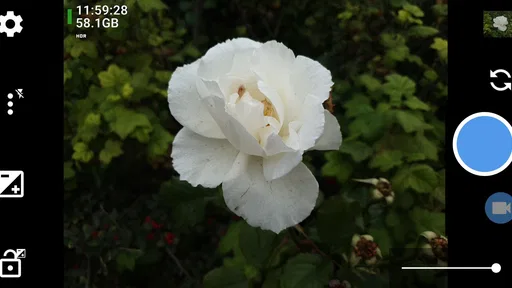
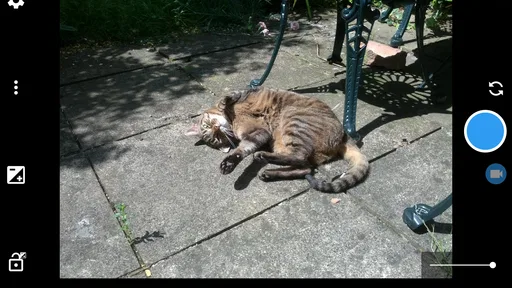
Right off the bat, Open Camera impresses with its clean and straightforward interface. There’s no clutter, just a sleek design that’s both user-friendly and functional. You'll find everything you need without feeling overwhelmed. The app opens swiftly, and the viewfinder is free from unnecessary icons, giving you more room to focus on snapping that perfect shot.
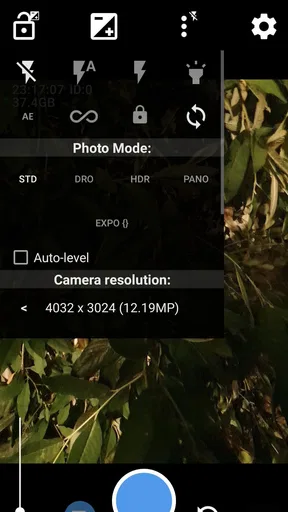
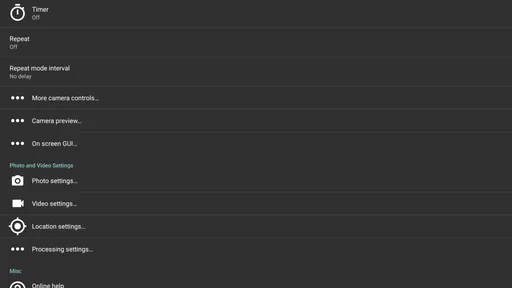
The main screen is where all the magic happens. You’ve got access to settings, controls, and a whole bunch of features that make this app feel like a professional tool. The settings icon opens up a world of options, from simple tweaks to advanced adjustments that are perfect for both newbies and seasoned photographers.
Features That Stand Out
Now, let’s dive into the juicy stuff. What makes this app a must-have is its plethora of features. You get to control the exposure, ISO, and even white balance, which is a game-changer for snapping photos in different lighting conditions. I love how it has a burst mode too, which is perfect for capturing fast-moving subjects.
The app also supports external microphones, which is fantastic for video creators looking to up their audio quality. And speaking of video, you can shoot in various resolutions, including 4K, if your device supports it. Oh, and did I mention it supports manual focus? You can finally get those dreamy, blurred backgrounds with ease.
Customization and Personalization
One of the things that makes Open Camera special is its customization options. You can set up the volume keys to act as a shutter button, zoom in and out, or even change exposure levels. It’s these little touches that make the app adaptable to your personal style.
I also appreciate the level of control you get over saving photos. You can choose different file formats, including RAW, which is a huge plus for editing later on. The app even allows you to geotag images, making it easier to remember where each photo was taken.
Performance and Usability
In terms of performance, Open Camera is a powerhouse. It runs smoothly without any noticeable lag, which is crucial when capturing fleeting moments. The app’s small size ensures it doesn’t hog your phone’s resources, leaving more room for all those stunning photos you’re going to capture.
Usability is where this app shines. Whether you’re a beginner wanting to keep things simple or a pro keen on tweaking every setting, Open Camera accommodates all. Its intuitive design ensures that you spend more time photographing and less time fumbling through menus.
Final Thoughts
To wrap it up, Open Camera is a gem in the world of mobile photography apps. It’s packed with features that cater to both casual users and photography enthusiasts. The best part? It’s completely free, without annoying ads or in-app purchases. Whether you’re aiming to capture candid moments or create high-quality content, Open Camera is your go-to app.
So, if you’re looking to elevate your photography skills without breaking the bank, give Open Camera a try. It might just become your favorite photography companion, always ready to help you capture life's beautiful moments.
Privacy and Permissions
See what permissions an app requests and how it handles your data.
- Location
- approximate location (network-based), precise location (GPS and network-based)
- Photos/Media/Files
- read the contents of your USB storage, modify or delete the contents of your USB storage
- Storage
- read the contents of your USB storage, modify or delete the contents of your USB storage
- Camera
- take pictures and videos
- Microphone
- record audio
Verdict
Strengths of Open Camera
- Highly customizable settings for various needs.
- No ads, providing a clean user experience.
- Supports external microphones for better audio.
- Open source with regular updates and improvements.
- Lightweight app with fast performance.
Limitations of Open Camera
- Interface can be overwhelming for beginners.
- Limited editing features within the app.
- Occasional glitches on some devices.
- No built-in cloud storage options.
- Requires manual configuration for best results.
Similar Picks in This Category
View All
Google Photos
Google LLC4.4

Gallery
Google LLC4.2

Picsart AI Photo Editor, Video
PicsArt, Inc.3.9

B612 AI Photo&Video Editor
SNOW Corporation4.1

BeautyPlus-Selfie Photo Editor
PIXOCIAL TECHNOLOGY (SINGAPORE) PTE. LTD.4.5

Remini - AI Photo Enhancer
Bending Spoons4.1
Frequently Asked Questions
What features make Open Camera stand out from other camera apps?
Open Camera offers a wide range of features that cater to both amateur and professional photographers. It includes manual controls for ISO, focus, and exposure, as well as support for external microphones and HDR. Additionally, it provides a user-friendly interface and the ability to save photos in various formats, making it versatile and powerful.
Is Open Camera compatible with all Android devices?
Open Camera is designed to be compatible with most Android devices. However, some features may depend on your device's hardware capabilities. It's always a good idea to check the app’s compatibility with your specific phone model and operating system version to ensure you can utilize all functionalities.
Does Open Camera support video recording, and what are the options?
Yes, Open Camera supports video recording with options for adjusting frame rates, resolutions, and bitrates. Users can also enable features like video stabilization and face detection. The app allows for customization, making it suitable for different video recording needs, whether for casual use or more professional projects.
Is Open Camera free to use, and are there any in-app purchases?
Open Camera is completely free to use with no in-app purchases. It is an open-source application, which means all features are available without any cost. This makes it an excellent choice for users looking for a full-featured camera app without the need for additional purchases.
How does Open Camera handle privacy and data security?
Open Camera is an open-source app, which means its code is publicly available for review, ensuring transparency in how it handles user data. The app requires necessary permissions, such as access to the camera and microphone, but it does not collect personal data or share information without user consent, prioritizing user privacy and security.
